Step 1
Set the physical book
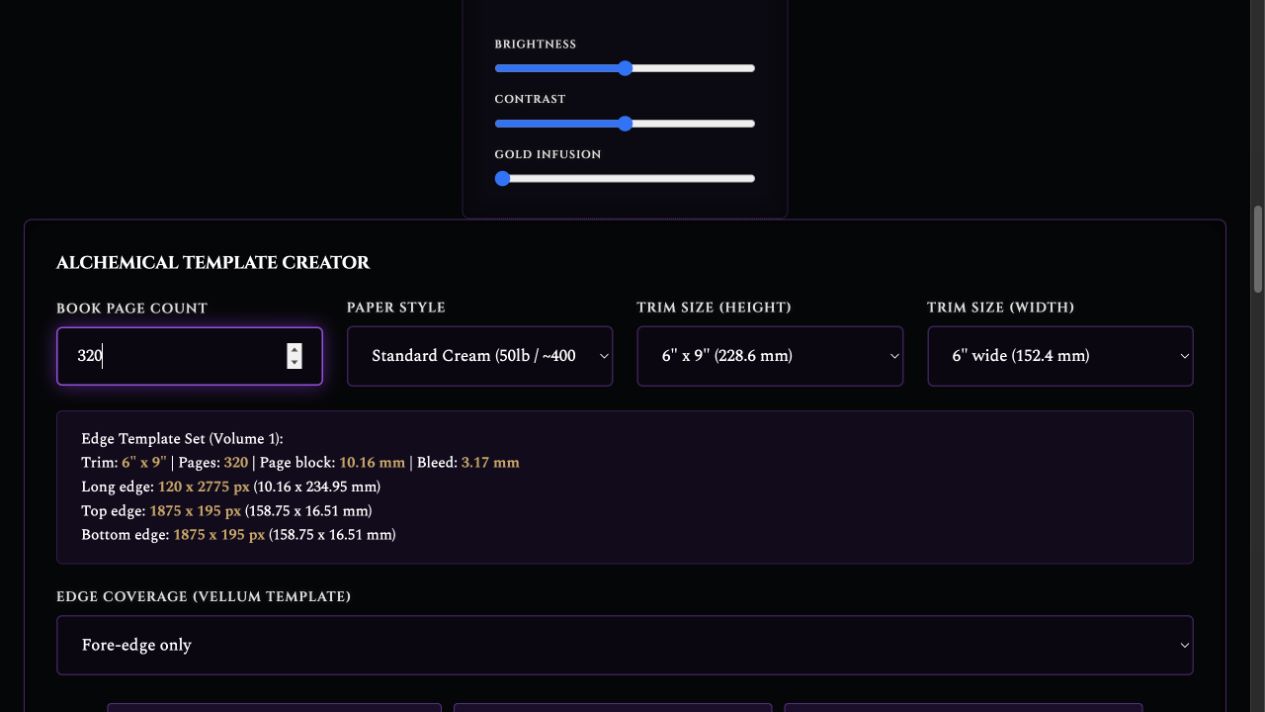
Confirm the final trim size, page count, and paper choice.
Step-by-step guide · Browser design workspace
Prepare decorative book-edge artwork and interior graphics for a specific print edition.
Check price and access →Step 1
Confirm the final trim size, page count, and paper choice.
Step 2
Load edge art and optional interior graphics; inspect their placement and coverage.
Step 3
Create the appropriate template or print PDF, then check it against your printer’s specifications.
Edge templates, reviewed interior graphics, and the exports supported by your chosen workflow.
Review the result against your source and intended use. Keep a backup before changing devices or replacing a saved project.
Decorative Edge and Interior Print Studio is a separate installable skill. Match the format to your production workflow.
Return to product and access details →