Character Weaver
Give the cast something to want—and something to lose.
Build an editable cast workspace with saved character versions, development across books, and relationships you can return to.
Classroom browser tool · AI provider usage is separate.
Your workflow
From starting point to something useful.
Name your series
Keep each cast in a separate browser workspace, or import your existing Book DNA cast.
Develop and revise
Write or generate a profile, keep versions, and record changes for each book.
Review and connect
Map relationships, approve a character version, and optionally exchange files with Series Bible Builder.
A concrete example
See what the workflow looks like.
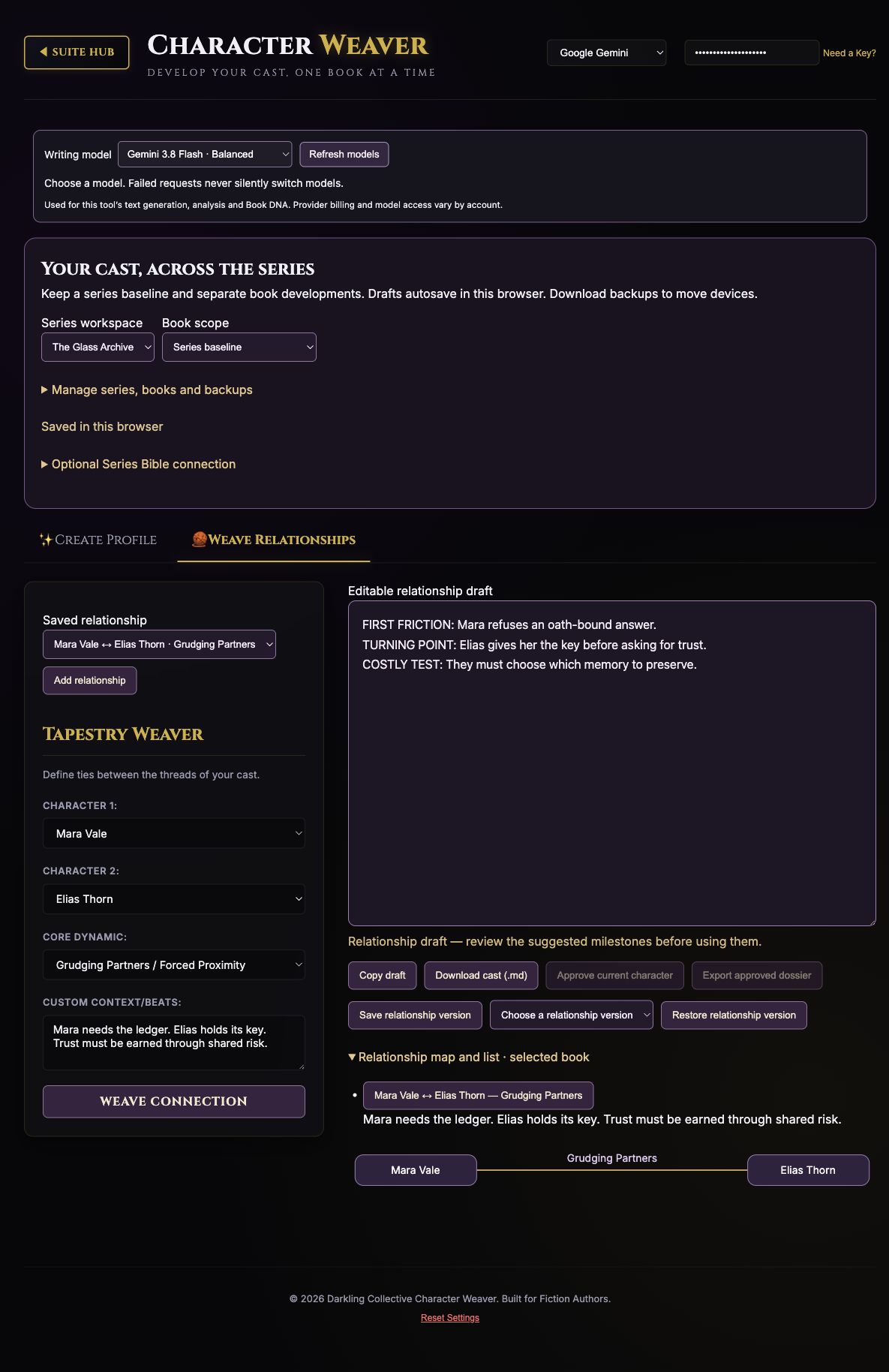
Mara’s series profile can remain intact while Book 2 records a changed allegiance. Her relationship with Elias has its own editable draft and version history. The updated walkthrough below shows the saved cast, book scopes, approvals, and optional canon exchange.
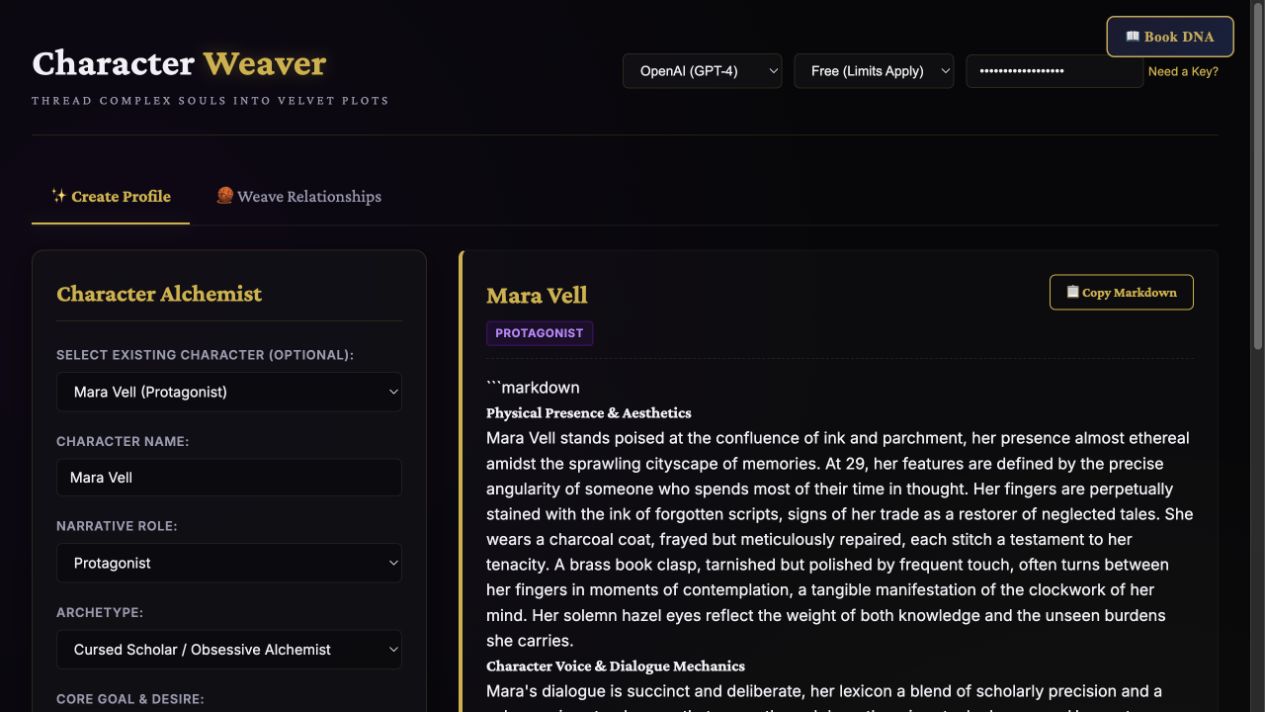
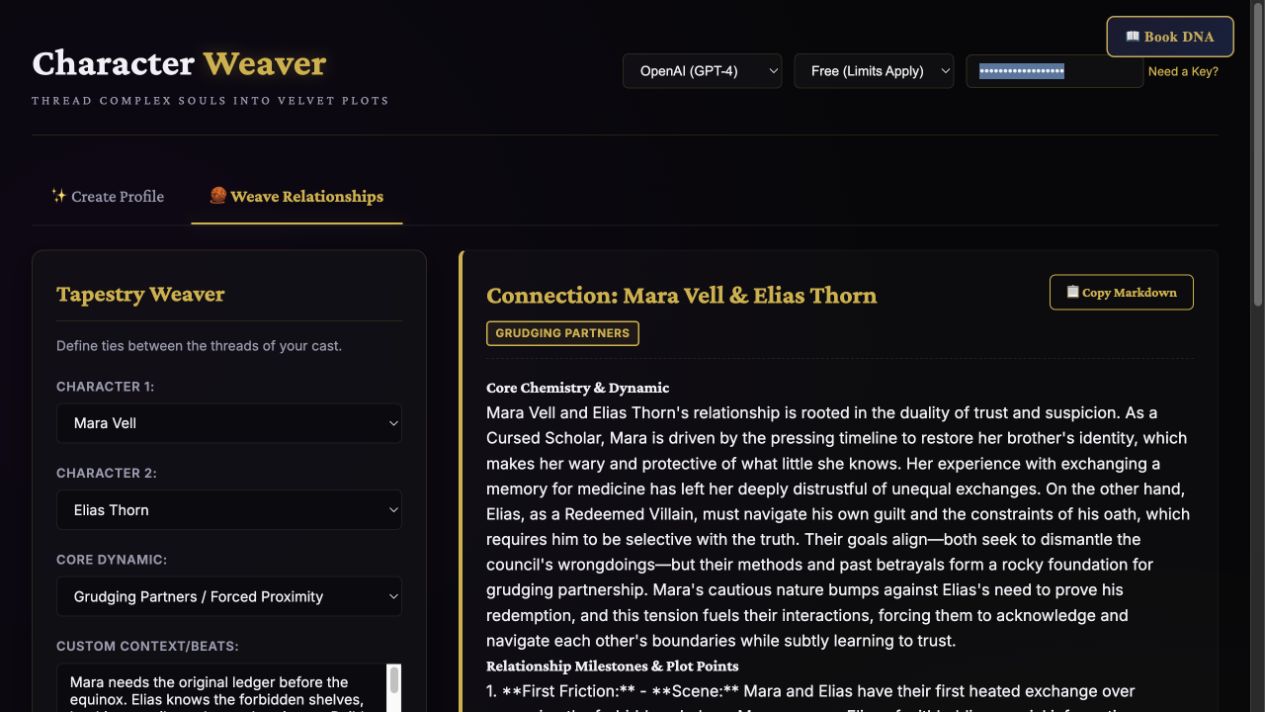
Screenshots show the actual app interface. Book and author examples are fictional. Setup screens are labeled separately from generated results; interface details may vary by edition.
What you can do
A focused tool for a specific job.
- Saved cast workspaces
- Autosave, portable backups, recovery versions and protection against conflicting tabs.
- Editable profiles
- Write manually or generate proposals with TeaserPro’s five shared AI provider choices.
- Character versions
- Keep up to 20 character versions and return to an earlier draft.
- Book development
- Separate the series baseline from each book’s arc and profile draft.
- Relationship map and list
- Reopen and edit saved connections, milestones and scene prompts for each book.
- Optional canon exchange
- Import approved source facts and return an approved dossier for review in Series Bible Builder.
Learn before you choose
Watch the tool in use.
4:50 updated walkthrough · Actual app captures · Prepared fictional example · AI narration · English captions
Read the walkthrough transcript
Character Weaver now saves a cast across a series and tracks development within separate books. This walkthrough shows the browser app, included in the Author Suite and VIP access. The separately sold installable Character Weaver skill runs inside your AI assistant; it does not unlock this browser app. We are using prepared fictional profiles for The Glass Archive. These are actual app screens, with an example written for teaching rather than a live generation demonstration. Open Manage series, books and backups. Enter a series name and choose New series. To add an installment, enter its title and choose Add book. The Series workspace menu switches projects, while Book scope selects the series baseline or one book. Add character creates another saved cast member. Our example contains Mara Vale and Elias Reed. Before editing, check the selected series, book, and character so your notes land in the right place. Start with the character’s role, goal, secret, physical details, and your own directives. Add concrete behavior rather than only an archetype label. Mara wants a stolen ledger back, but her costly choice is whether to trust Elias with the only key. The editable profile can be written manually without an API key. For AI drafting, choose a provider and writing model and connect your own key. Read the proposed profile, revise its voice and motivations, and decide which invented details belong in your story. Use Series baseline for traits and design notes that apply across the series. Then select a book to record what changes in that installment. In The Stolen Ledger, Mara learns to ask for help and gives Elias the key during a lockdown. Her book-specific development and draft are separate from the baseline profile. This helps you distinguish what she is like throughout the series from what she learns in one book. Recheck the scope before revising. Open Weave Relationships and choose two saved characters. Set the dynamic and describe the context or beats you want to explore. The editable relationship draft can hold competing goals, friction, earned trust, and a scene-level test. Our example gives Mara and Elias different reasons to recover the same ledger. The map and list show the saved connection. Relationships can be scoped to a book, and saved relationship versions let you keep earlier approaches while revising. Save character version preserves a checkpoint you can return to. Approve current character records the version you have reviewed. If you edit afterward, the app says the profile has changed since approval. Export approved dossier still uses the last approved snapshot, so your latest draft does not silently become the approved design. Review and approve again when the revision is ready. Download cast gives you a readable Markdown reference; it is different from a full editable backup. Open Optional Series Bible connection to import approved source facts from Series Bible Builder. The reference file keeps quotations and book or chapter labels. Importing it does not automatically rewrite a character profile. To send a character back, approve the profile and export its dossier. Series Bible asks you to review that design before adding a character card. The connection is file-based and optional. Both tools work independently, and owning one does not grant access to the other. Drafts autosave in this browser. Download backup preserves the editable series project for import elsewhere, while recovery versions help you return to earlier work. These local saves do not automatically synchronize across devices or editions. Keep a backup before clearing browser data or switching computers, and connect your own provider again on the new device. For practice, create two characters, add one relationship, save and approve a profile, then export a readable cast and a project backup.
Before you start
What you need.
The browser app is available through existing Suite/VIP classroom access. It saves locally in your browser; download backups to move devices. AI generation uses your own provider key and separate provider billing. The standalone store product is an installable skill, not browser-app access. Series Bible integration is optional and requires access to that tool.
AI access and usage
Connect a supported AI provider as shown in your edition. App access and AI usage are separate; provider availability and costs depend on your account. Read the API setup guide.
Keep a reviewed copy
Check the work against your actual project, then save or export the material you want to keep. Your final editorial and publishing choices remain yours.
Character Weaver
Use your classroom tool link.
This page shows the browser tool described in the Darkling classroom. Follow your existing classroom link to open it, and use the free walkthrough for setup.
Open the setup walkthroughClassroom guidePrefer an installable workflow? The Author Skills collection includes a separate skill with this name. A skill purchase supplies the downloadable skill, rather than the browser app shown here.
Explore Author Skills →Keep exploring