Outline Expander
Turn the big turns into chapters you can draft.
Build an editable chapter-and-scene roadmap with causal turns, character choices, tracked story promises and recoverable versions.
Classroom browser tool · AI provider usage is separate.
Your workflow
From starting point to something useful.
Start with the story
Name the book, add beats and an ending, then choose 1–40 chapters and an optional framework.
Build and refine
Generate a chapter plan, then saved scene drafts. Edit, reorder, move or regenerate individual scenes.
Track and draft
Link setups and payoffs, review unresolved threads, and export the roadmap or deliberately copy it into active Book DNA.
A concrete example
See what the workflow looks like.
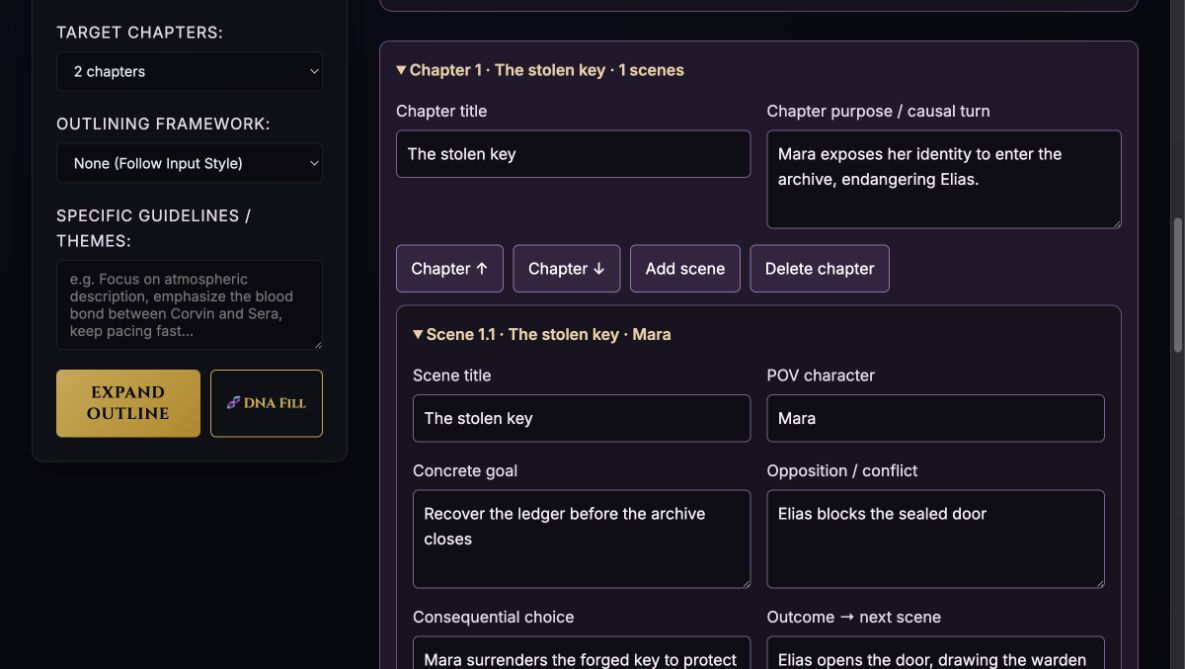
The Ash Door is a fictional demonstration of the editable workspace. Its scene cards show a concrete goal, costly choice and consequence. The screenshot uses a controlled test response to demonstrate the interface; it is not a live-model quality claim.
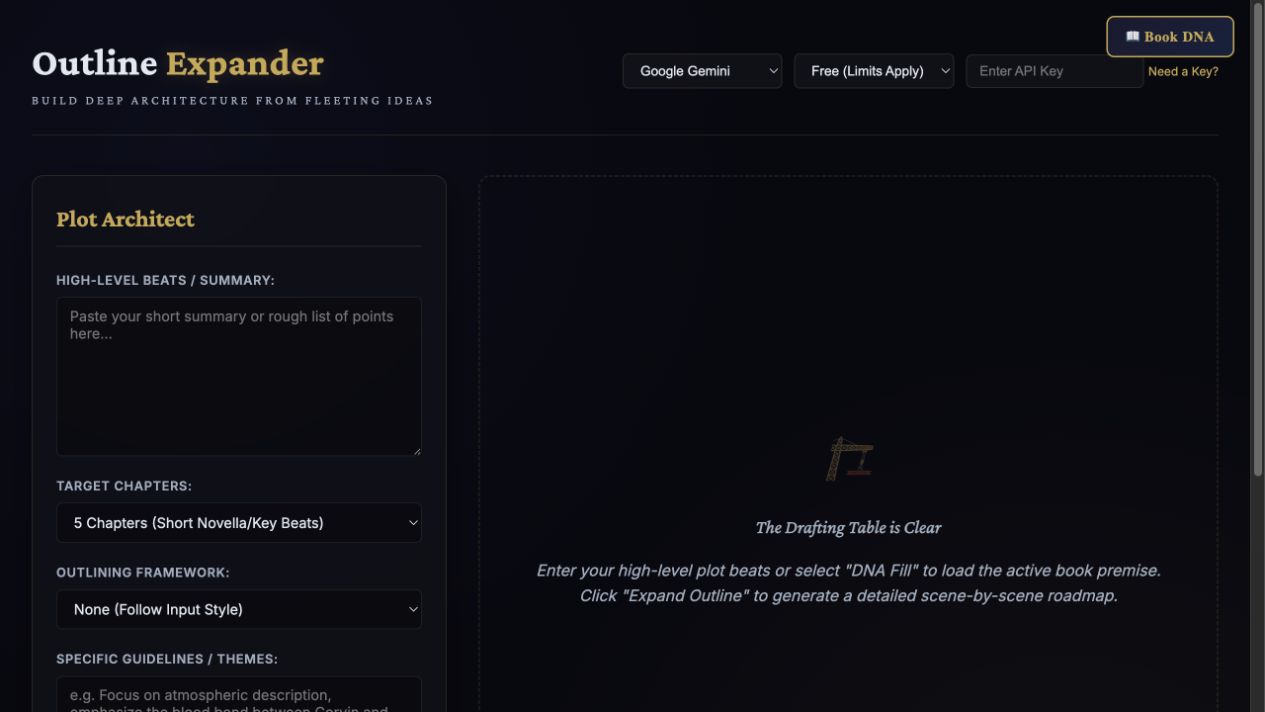
Screenshots show the actual app interface. Book and author examples are fictional. Setup screens are labeled separately from generated results; interface details may vary by edition.
What you can do
A focused tool for a specific job.
- Editable scene cards
- POV, goal, conflict, choice, outcome, sensory detail and word targets.
- Stronger story progression
- Generation asks for causal consequences, escalating choices, character turns and earned payoffs.
- Resumable chapters
- Completed chapter drafts survive interrupted requests; resume only unfinished chapters.
- Saved versions and backups
- Keep up to 20 outline versions, browser autosave and portable backups without connection settings.
- Plot-thread register
- Link setups and payoffs to stable scene IDs; flag unresolved promises and reversed order.
- Optional character and canon references
- Import approved Character Weaver dossiers or Series Bible facts without requiring both tools.
Learn before you choose
Watch the tool in use.
4:33 updated walkthrough · Actual app captures · Fictional example · Controlled responses · AI narration · English captions
Read the walkthrough transcript
Outline Expander now gives you an editable workspace for the whole book. This walkthrough uses The Ash Door, a fictional example inside the updated app. The demonstration responses are controlled examples, so focus on the workflow rather than treating them as a promise of any model’s output. Start by naming your book. Each workspace keeps its own story brief, chapter cards, versions and reference material. Enter the major story turns, including the ending you want to preserve. Here, Mara’s attempt to recover a ledger puts Elias in danger, and she chooses to burn the evidence to save him. Add your point of view rules, genre and non-negotiable details. Choose a chapter count and an optional framework. AI generation uses the same provider and model controls as TeaserPro. Manual editing does not need an API key. Expand Outline first builds a plan for the whole story, then drafts scenes one chapter at a time. Completed chapters save as they finish. If a provider request is interrupted, the unfinished chapter stays clearly marked. Use Resume unfinished chapters to continue. Pause after current chapter waits for the response in progress to finish. Review every draft for story logic, especially any proposed details the model adds. Open a chapter, then open its scene card. You can edit the point of view, concrete goal, opposition, consequential choice and outcome. In this example, Mara gives up her forged key to protect Elias. That action changes her options and drives the next scene. Further down, refine the action, opening hook, pacing, sensory details, theme and target word count. These fields are editable, so your outline can evolve with the story. Use the up and down buttons to reorder chapters or scenes. Move to chapter places a scene elsewhere while preserving its identity. Regenerate this scene revises only the selected card and keeps the other scenes. Before a major rewrite, save a version. A new full outline is a separate action: it retains the earlier outline in version history before replacing the current chapter plan. Open Plot threads and promised payoffs. Add a question or promise, then link its setup and payoff scenes. Mark it unresolved, resolved or intentionally left open. Here we track who forged the key. If reordering puts the payoff before its setup, the register flags that order. This is a tracking system you control, not an automatic manuscript continuity check. Scene notes and the thread register work together. Under optional references, import an approved Character Weaver dossier or an approved canon export from Series Bible. The imported material stays visible as reference and does not automatically rewrite your outline. Neither companion tool is required. You can always work from your own brief. Review the imported character’s book-specific development and source facts before asking the model to use them. Work autosaves in this browser. Save version keeps a named checkpoint, and Restore version lets you return to it. Download backup creates a portable file; importing a backup opens a separate book workspace. Copy Markdown or Export text gives you a drafting roadmap. Save to active Book DNA is a deliberate copy into the currently active project. Suite and VIP members use their existing app access. Standalone owners have the separate installable skill. Find the updated guide at darkling collective store dot com slash outline expander.
Before you start
What you need.
The browser app is available through existing Suite/VIP access. AI generation uses your own provider key and the shared TeaserPro model controls; provider billing is separate. Manual editing works without a key. Projects save in this browser, so download backups to move devices. The standalone purchase is an installable skill, not browser-app access.
AI access and usage
Connect a supported AI provider as shown in your edition. App access and AI usage are separate; provider availability and costs depend on your account. Read the API setup guide.
Keep a reviewed copy
Check the work against your actual project, then save or export the material you want to keep. Your final editorial and publishing choices remain yours.
Outline Expander
Use your classroom tool link.
This page shows the browser tool described in the Darkling classroom. Follow your existing classroom link to open it, and use the free walkthrough for setup.
Open the setup walkthroughClassroom guidePrefer an installable workflow? The Author Skills collection includes a separate skill with this name. A skill purchase supplies the downloadable skill, rather than the browser app shown here.
Explore Author Skills →Keep exploring